After restoring my ghost image to the lenovo 9485, I got the error "there has been a signature failure".
I can restore the image without any problem with R-tools.
I find this article on the web and try their instruction and it works.
Re: There has been a signature failureOptions
Mark as New
Bookmark
Subscribe
Subscribe to RSS Feed
Highlight
Print
Email to a Friend
Report Inappropriate Content
12-22-2008 07:31 AM
Partition does not boot after being restored with Norton Ghost - NetVista / ThinkCentre / ThinkPad General
Applicable Countries/Regions
Worldwide
Preloaded Software Information
Symptom
The master boot record on affected systems is comprised of 4 sectors, as opposed to the single sector expected by Norton Ghost. Since the boot is dependent on coding contained in all 4 sectors, the system hangs when it attempts to boot to the incomplete master boot record. A "signature failure" error message may also be displayed.
Affected configurations
This symptom apples to any NetVista, ThinkCentre and ThinkPad system using the WinPE Rescue and Recovery partition; as opposed to the PARTIES partition used on NetVista, ThinkCentre and ThinkPad systems prior to 2004.
Solution
The Ghost documentation provides the solution. Use the -IB switch when invoking Ghost from the command line or within a batch file. This should be done on both the image creation. The command line syntax is, C:\> GHOST -IB
A complete list of Ghost command line switches is displayed by typing GHOST ? and pressing the Enter key at the command prompt. For further information, contact Symantec technical support.
Additional information
If you need to Ghost an entire hard drive, including a hidden partition, use the following method:
Enter BIOS, go to Security, and set the predesktop area to "disabled" to make the hidden partition visible on the system with the source drive.
Run Symantec Ghost with the -IB switch when you create the image (example: C:\> GHOST -IB)
After the image is created, make the predesktop area visible on the target system by disabling it.
Restore the image created in step 2. No special switches are needed for this step (for NetVista only).
Reset the predesktop area to "normal", the system may be booted normally to the operating system or to the predesktop area by pressing the Access IBM key during POST.
Wednesday, December 30, 2009

Thursday, December 10, 2009
Multiple instance of google talk
1. Right-click on the desktop
2. Select New
3. Select Shortcut
4. Paste this into the text box:
"c:\program files\google\google talk\googletalk.exe" /nomutex
5. Click Next. Name it Google Talk Multiple
Click OK until you are done.
6. Sign out from google talk and uncheck remember password
7. Double clic the new icon and enter your username and password for the first account - check remember password if you want
8. Double clic the new icon and enter your username and password for the second account - check remember password if you want
9. Repeat the same process if you have more than 2 accounts.
2. Select New
3. Select Shortcut
4. Paste this into the text box:
"c:\program files\google\google talk\googletalk.exe" /nomutex
5. Click Next. Name it Google Talk Multiple
Click OK until you are done.
6. Sign out from google talk and uncheck remember password
7. Double clic the new icon and enter your username and password for the first account - check remember password if you want
8. Double clic the new icon and enter your username and password for the second account - check remember password if you want
9. Repeat the same process if you have more than 2 accounts.
Tuesday, December 8, 2009
Convaincing reason to leave users off vlan 1
see ciscopress bcmsn (ccnp) page 544 pdf version.
All hosts on VLAN 1 (PC-1, PC-2, and PC-3) will experience the broadcast storm. All trunk
links between switches will transport the broadcast frames. In addition, all switch supervisor
CPUs will receive and process the broadcasts because each switch has an IP address for
management assigned to VLAN 1. (For this reason, it is recommended to reserve VLAN 1 for
control protocol traffic only. User-generated broadcasts can overload the switch supervisor to
the extent that it no longer can keep track of its control or “overhead” protocols, such as VTP,
CDP, and so forth. Instead, all user traffic should be kept off VLAN 1.)
All hosts on VLAN 1 (PC-1, PC-2, and PC-3) will experience the broadcast storm. All trunk
links between switches will transport the broadcast frames. In addition, all switch supervisor
CPUs will receive and process the broadcasts because each switch has an IP address for
management assigned to VLAN 1. (For this reason, it is recommended to reserve VLAN 1 for
control protocol traffic only. User-generated broadcasts can overload the switch supervisor to
the extent that it no longer can keep track of its control or “overhead” protocols, such as VTP,
CDP, and so forth. Instead, all user traffic should be kept off VLAN 1.)
How to get google labs with a google apps account
Is Google labs missing from your google apps account?
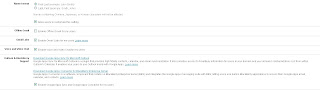
Here are the step to get your google labs :
1- to dashboard in your google apps account
2- clic domain setting
3- check mark Enable pre-release features and save
4- dashboard and clic service setting
5- clic email
6- check mark Enable Gmail Labs for my users
7- save.
It takes couple hours for the google labs to display in your users setting -- so be patient.

Here are the step to get your google labs :
1- to dashboard in your google apps account
2- clic domain setting
3- check mark Enable pre-release features and save
4- dashboard and clic service setting
5- clic email
6- check mark Enable Gmail Labs for my users
7- save.
It takes couple hours for the google labs to display in your users setting -- so be patient.


Monday, December 7, 2009
Upside-Down Display In Windows XP
To revert to a right-side up display, hold down the CTRL, ALT and UP (arrow) keys.
Tuesday, November 24, 2009
How to wipe out your blackberry 8830 series
It is easy to wipeout your blackberry 8830 devices
1- Press the blackberry menu button
2- option (the wrench tool)
3-Security options (scroll down to see it)
4-General setting (first line )
5-Desktop (the last line - your have to scroll down)
6- Wipe Handhelp (2nd line)
7- Press continue
8- enter blackberry
and voila
1- Press the blackberry menu button
2- option (the wrench tool)
3-Security options (scroll down to see it)
4-General setting (first line )
5-Desktop (the last line - your have to scroll down)
6- Wipe Handhelp (2nd line)
7- Press continue
8- enter blackberry
and voila
Saturday, November 14, 2009
Difference between spanning-tree portfast bpduguard default and spanning-tree bpdufilter
source :
http://www.blogger.com/post-create.g?blogID=7181412395554836857
Understanding How PortFast BPDU Filtering Works
Release 12.1(13)E and later releases support PortFast BPDU filtering, which allows the administrator to prevent the system from sending or even receiving BPDUs on specified ports.
When configured globally, PortFast BPDU filtering applies to all operational PortFast ports. Ports in an operational PortFast state are supposed to be connected to hosts, that typically drop BPDUs. If an operational PortFast port receives a BPDU, it immediately loses its operational PortFast status. In that case, PortFast BPDU filtering is disabled on this port and STP resumes sending BPDUs on this port.
PortFast BPDU filtering can also be configured on a per-port basis. When PortFast BPDU filtering is explicitly configured on a port, it does not send any BPDUs and drops all BPDUs it receives.
Caution Explicate configuring PortFast BPDU filtering on a port that is not connected to a host can result in bridging loops as the port will ignore any BPDU it receives and go to forwarding.
When you enable PortFast BPDU filtering globally and set the port configuration as the default for PortFast BPDU filtering (see the "Enabling PortFast BPDU Filtering" section), then PortFast enables or disables PortFast BPDU filtering.
If the port configuration is not set to default, then the PortFast configuration will not affect PortFast BPDU filtering. Table 16-1 lists all the possible PortFast BPDU filtering combinations. PortFast BPDU filtering allows access ports to move directly to the forwarding state as soon as the end hosts are connected.
Table 16-1 PortFast BPDU Filtering Port Configurations
Per-Port Configuration
Global Configuration
PortFast State
PortFast BPDU Filtering State
Default
Enable
Enable
Enable1
Default
Enable
Disable
Disable
Default
Disable
Not applicable
Disable
Disable
Not applicable
Not applicable
Disable
Enable
Not applicable
Not applicable
Enable
1 The port transmits at least 10 BPDUs. If this port receives any BPDUs, then PortFast and PortFast BPDU filtering are disabled.
http://www.blogger.com/post-create.g?blogID=7181412395554836857
Understanding How PortFast BPDU Filtering Works
Release 12.1(13)E and later releases support PortFast BPDU filtering, which allows the administrator to prevent the system from sending or even receiving BPDUs on specified ports.
When configured globally, PortFast BPDU filtering applies to all operational PortFast ports. Ports in an operational PortFast state are supposed to be connected to hosts, that typically drop BPDUs. If an operational PortFast port receives a BPDU, it immediately loses its operational PortFast status. In that case, PortFast BPDU filtering is disabled on this port and STP resumes sending BPDUs on this port.
PortFast BPDU filtering can also be configured on a per-port basis. When PortFast BPDU filtering is explicitly configured on a port, it does not send any BPDUs and drops all BPDUs it receives.
Caution Explicate configuring PortFast BPDU filtering on a port that is not connected to a host can result in bridging loops as the port will ignore any BPDU it receives and go to forwarding.
When you enable PortFast BPDU filtering globally and set the port configuration as the default for PortFast BPDU filtering (see the "Enabling PortFast BPDU Filtering" section), then PortFast enables or disables PortFast BPDU filtering.
If the port configuration is not set to default, then the PortFast configuration will not affect PortFast BPDU filtering. Table 16-1 lists all the possible PortFast BPDU filtering combinations. PortFast BPDU filtering allows access ports to move directly to the forwarding state as soon as the end hosts are connected.
Table 16-1 PortFast BPDU Filtering Port Configurations
Per-Port Configuration
Global Configuration
PortFast State
PortFast BPDU Filtering State
Default
Enable
Enable
Enable1
Default
Enable
Disable
Disable
Default
Disable
Not applicable
Disable
Disable
Not applicable
Not applicable
Disable
Enable
Not applicable
Not applicable
Enable
1 The port transmits at least 10 BPDUs. If this port receives any BPDUs, then PortFast and PortFast BPDU filtering are disabled.
Subscribe to:
Posts (Atom)

